

Welcome to GClip 欢迎使用 GClip
GClip is a wave-shaping signal clipper. It prevents the signal level from exceeding a specified maximum. The clipping function used can be altered to have a hard- or soft-knee.
GClip 是一种用于调整信号波形的削波器。它能够防止信号电平超过规定的最大值。所使用的削波方式可以是硬削波或软削波。
Interface 界面/接口
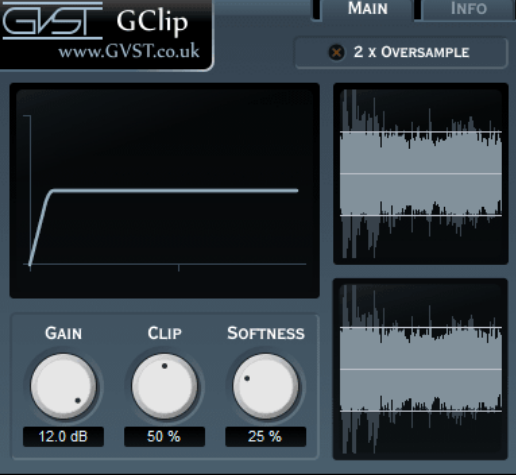
The display features three main areas. At the top-left is the graph display, to the right is the wave display and at the bottom-left are the parameter controls.
该显示屏分为三个主要区域。左上角是图表显示区域,右侧是波形显示区域,左下角则用于参数设置。
Graph Display: This shows the shape of the clipping function that is applied to incoming samples. All three knobs affect the shape of this curve.
图形显示:该图展示了应用于输入样本的剪切函数的形状。这三个旋钮都会影响这条曲线的形状。
Wave Display: This shows the waveform of the signal after the input gain has been applied. Superimposed over that is the output signal, after clipping. So you get a before and after display. The clipping level is also displayed as a solid horizontal line.
波形显示:该功能用于展示在应用了输入增益之后的信号波形。在波形上方则显示了经过削波处理后的输出信号。这样,就可以同时看到处理前的波形和处理后的波形。削波水平则以一条实线形式显示出来。
Gain: This allows you to raise the signal level before clipping.
增益:该功能可用于在信号被削波之前提升其强度。
Clip: The clipping level as a percentage of the maximum sample value. So, if you consider samples to go from -1 to 1, then a clipping level of 50% will restrict all samples to between -0.5 and 0.5.
剪辑比例:指的是剪辑水平占最大样本值的百分比。例如,如果样本值的范围是-1 到 1,那么 50%的剪辑比例意味着所有样本值都将被限制在-0.5 到 0.5 的范围内。
Softness: This parameter sets the shape of the “knee” of the clipping function. If this parameter is 0% then GClip behaves as a simple signal clipper, truncating samples that exceed the clipping level. Greater values for softness will cause samples approaching the clipping level to be affected.
“柔和度”:该参数决定了剪辑功能的“临界点”形状。如果该参数设置为 0%,则 GClip 会表现得像一个简单的信号剪辑器,只会截断那些超过剪辑阈值的样本。当“柔和度”值越大时,那些接近剪辑阈值的样本也会受到影响。
2x Oversample: Turn oversampling on or off. Wave-shaping can introduce audible aliasing, especially with more drastic settings. The oversampling mode can help to minimize aliasing in such cases.
2 倍过采样:开启或关闭过采样功能。波形处理过程可能会产生可听见的混叠现象,尤其是在过度调整过采样参数时。在这种情况下,过采样模式有助于减少混叠现象。
Hints and ideas 提示与建议
- The user interface features a wave display to aid configuration. Simply play the audio and watch the wave display while you set the desired values for input gain, clip-level and softness. And don’t forget to use your ears as well.
该用户界面采用了波形显示功能,有助于用户进行参数设置。只需播放音频,同时观察波形图,即可设定所需的输入增益、削波电平以及柔和度等参数。当然,也别忘了用耳朵来感受音频效果哦。 - You can create a distortion effect with excessive gain and harsh clipping. On the other hand, if you’re not after distortion, then listen carefully to sections that are reaching the clip threshold.
通过过高的增益和强烈的削波处理,可以创造出失真效果。不过,如果你并不想要这种失真效果,那就请仔细听听那些已经达到削波阈值的音段。 - When using GClip for more extreme wave-shaping, the oversampling mode can reduce aliasing for a warmer sound.
在使用 GClip 进行更复杂的波形处理时,开启过采样模式可以减少混叠现象,从而让音效更加自然、温暖。